Few bounce messages stop a B2B campaign as completely as this one. Your mail to Outlook.com, Hotmail, Live, and Microsoft-hosted business domains starts coming back with a rejection that ends in (S3150). Until it’s resolved, that IP can’t reach Microsoft inboxes at all.
Here’s what the error means, why it happens, and the steps for getting blocked IPs delisted at Microsoft.
What the S3150 Error Means
An S3150 bounce typically looks something like this:
550 5.7.1 Unfortunately, messages from [your IP] weren't sent.
Please contact your Internet service provider since part of their
network is on our block list (S3150).
In plain terms, Microsoft has placed your sending IP (or the network range it belongs to) on its internal block list. This isn’t a content filter or a spam-folder decision. The message is rejected outright, so it never reaches the recipient.
Because so many enterprises run Microsoft 365, the impact goes well beyond consumer addresses. As we covered in why your cold emails bounce at enterprise companies, enterprise deliverability is largely Microsoft deliverability. One blocked IP can cut off a large share of a B2B list.
Why IPs Get Blocked
Microsoft doesn’t publish the exact triggers, but the usual causes are familiar to anyone who has managed sending infrastructure:
- High complaint rates, often from poorly targeted or stale lists
- Hitting spam traps or large numbers of invalid addresses
- Sudden volume spikes from an IP with little sending history
- A compromised account or server sending without your knowledge
- Sharing a network neighborhood with other abusive senders
How to Fix It and Get Delisted
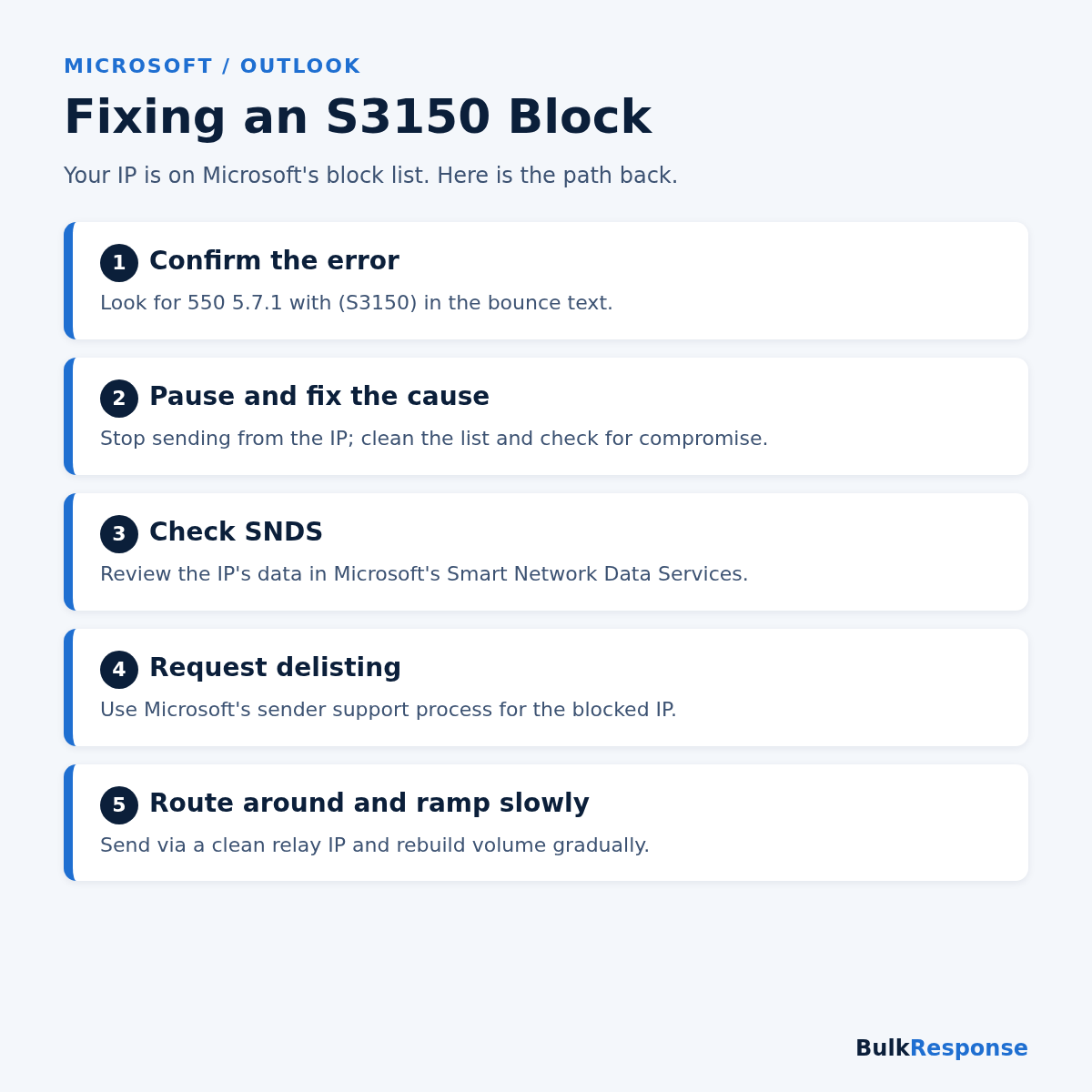
1. Stop sending from the blocked IP
Every additional rejected message reinforces the problem. Pause Microsoft-bound traffic from that IP right away.
2. Fix the underlying cause first
Delisting without fixing the cause usually leads to a quick relisting. Clean your list, remove unengaged contacts, and check that no account or server has been compromised.
3. Check the IP in SNDS
Microsoft’s Smart Network Data Services gives IP owners data about how Outlook.com sees their traffic. Microsoft is clear that reputation is always the sender’s responsibility, and SNDS is how you monitor it.
4. Submit a delisting request
For mail rejected by Microsoft 365 (Office 365) recipients, Microsoft provides a self-service delist portal: you verify an email address, confirm it, and then request delisting for the IP. For Outlook.com consumer mailboxes, the SNDS site directs senders with urgent issues to contact Microsoft’s sender support. Be specific about what went wrong and what you changed.
5. Route around the block and ramp slowly
While you wait, send Microsoft-bound mail through a clean relay IP with an established reputation rather than the listed one. Once delisted, rebuild volume gradually instead of resuming at full speed.
S3150 Recovery Checklist
- Confirm the bounce text contains S3150 and note the affected IP.
- Pause all Microsoft-bound sending from that IP.
- Validate your list and remove invalid, role, and unengaged addresses.
- Rule out a compromised account or server.
- Review the IP’s data in SNDS.
- Request delisting through Microsoft’s sender support process.
- Route Microsoft traffic through a clean IP and ramp volume slowly.
- Confirm SPF, DKIM, and DMARC pass and align before resuming.
The Bottom Line
An S3150 block is serious, but it’s fixable. Treat Microsoft as its own workstream, fix the cause before asking for delisting, and keep Microsoft-bound traffic on clean IPs. For the broader foundations, including authentication, warmup, and list hygiene, see our complete guide to cold email deliverability in 2026.
BulkResponse has run SMTP relay and bulk email infrastructure since 2008, with clean relay routing for the major mailbox providers. If Microsoft blocks are costing you pipeline, take a look at our pricing.