A good email design takes time: a layout that works in every inbox, buttons that are easy to tap on a phone, and HTML that doesn’t break in Outlook. In this guide we show how to hand that job to GrokBot. You give it your copy and logo, it designs an email-client-safe HTML template, and then it adds the finished design to your BulkResponse campaign editor and sends test previews to your own inbox.
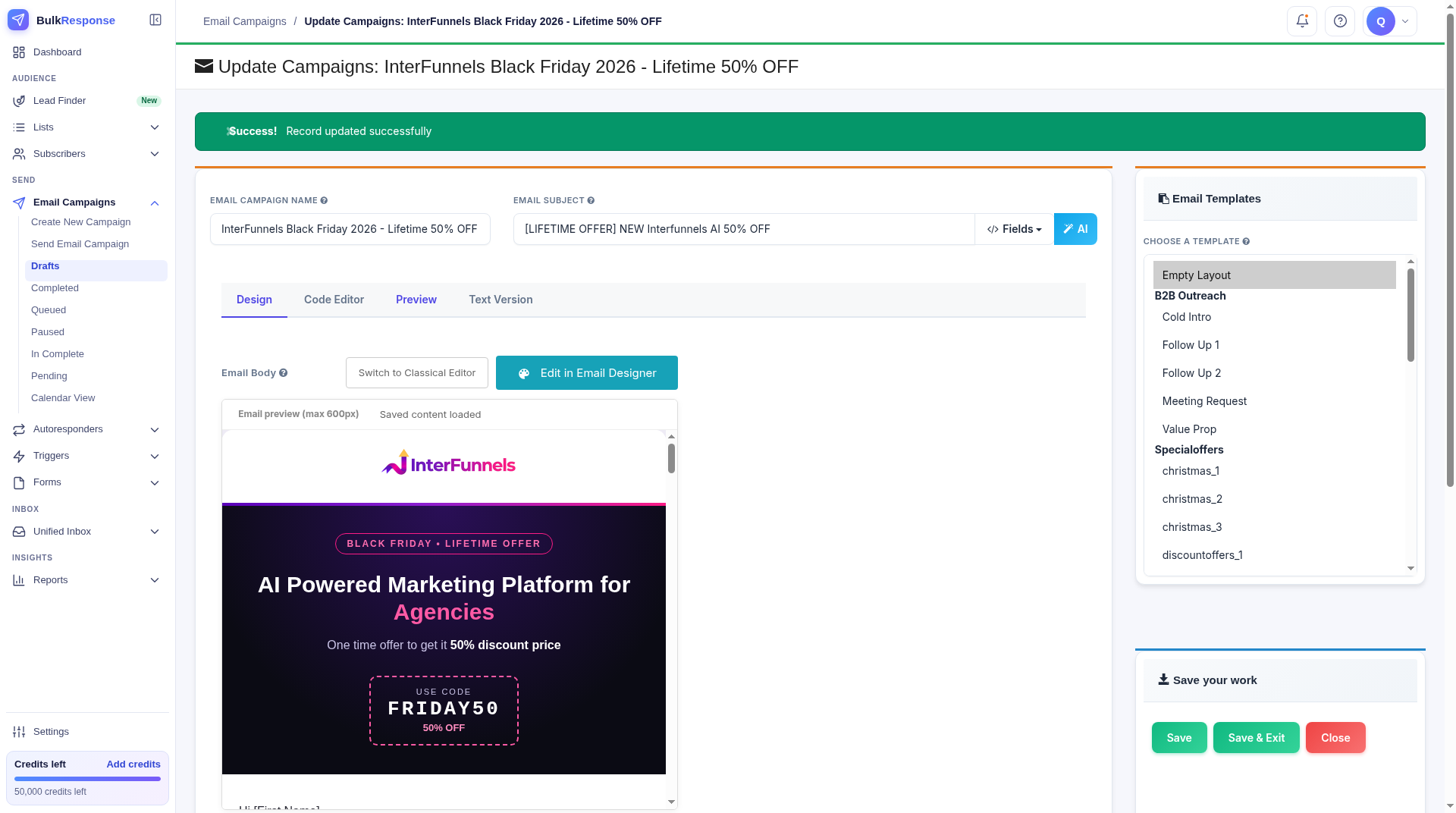
Everything below is based on a real email we built this way: a Black Friday offer for InterFunnels, designed in a GrokBot chat and saved as a draft campaign in the BulkResponse WebApp. Nothing went to a list until a person decided to send it.
In this guide
- What you need
- Step 1: Give GrokBot your copy, brand and logo
- Step 2: Review the previews and iterate
- Step 3: Hand over your BulkResponse login safely
- Step 4: Add the email to the BulkResponse campaign editor
- Step 5: Send test previews to your own inboxes
- Step 6: Final checks before you send
- Tips for better results
- FAQ
What you need
- A BulkResponse account. If you don’t have one yet, compare the plans or create your account.
- A verified from address. Use a from email on a sending domain you have added and verified in your BulkResponse account.
- A Grok Bot account. GrokBot does the design work in chat and uses its own browser for the BulkResponse steps.
- Your copy and your logo. Subject line, headline, body text, bullet points and button labels, plus a logo image file.
Step 1: Give GrokBot your copy, brand and logo
Start with your own words. Paste the subject line, headline, subheading, body text, any bullet lists and your button labels into the GrokBot chat, and attach your logo. Then say what you want the email to feel like.
For our Black Friday email, the request looked like this:
Design a Black Friday email from InterFunnels with this logo.
Headline: AI Powered Marketing Platform for Agencies
Subheading: One time offer to get it 50% discount price
Make important words bold and use bullet points where needed.
Buttons: "See your 50% off offer", "See what AI can build for you", "Claim 50% off with FRIDAY50"
Here's the copy: ...
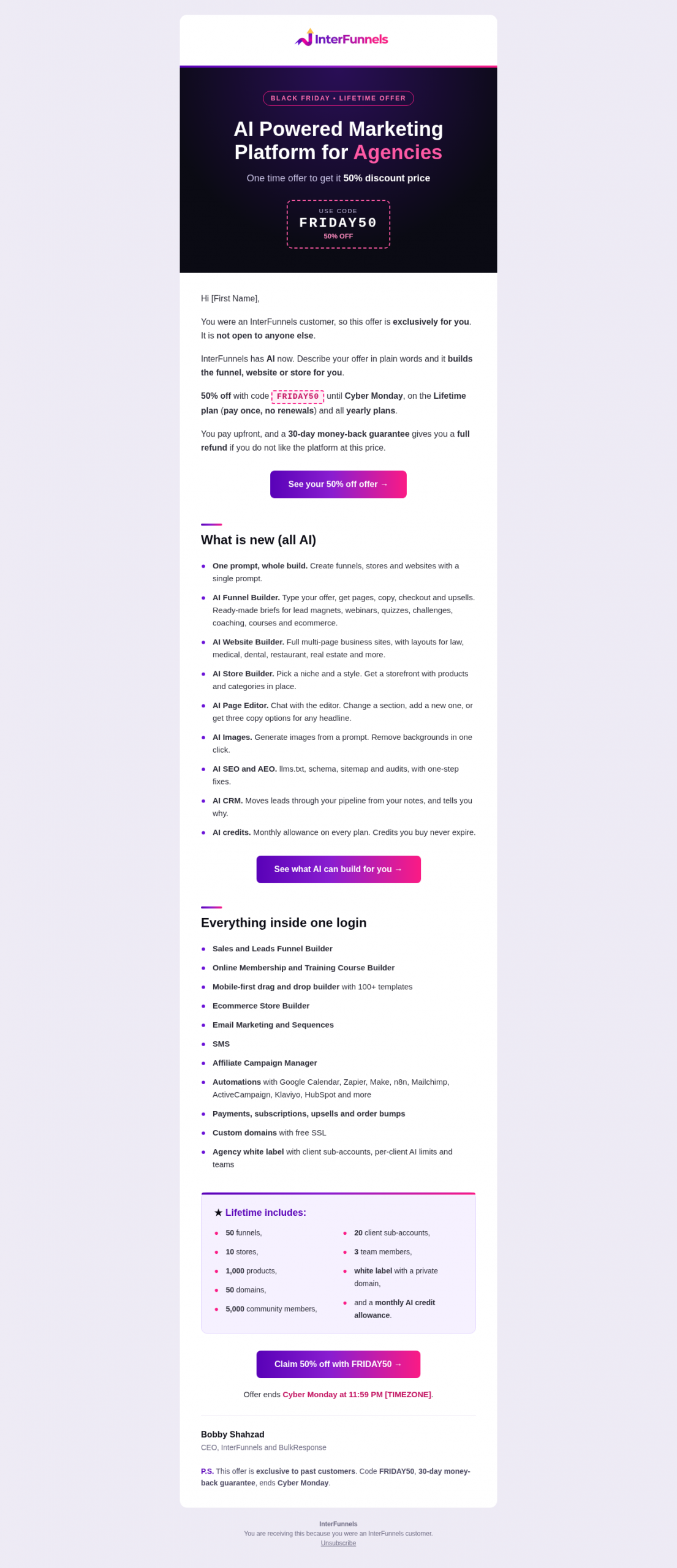
GrokBot built the email the way inbox-safe emails need to be built:
- A 600px table layout with inline CSS, which email clients handle far better than modern web layouts.
- A mobile rule so the email reflows on small screens.
- Text buttons, not image buttons, so they still show when images are blocked.
- A dark hero band, a coupon-style code badge and a highlighted “Lifetime includes” box to pull the eye to the offer.
- About 23 KB of HTML, well under the size where Gmail clips long emails.
Step 2: Review the previews and iterate
GrokBot sends back previews in the chat: one at phone width (390px) and one at desktop width. Check both before anything goes near BulkResponse.

Not quite right? Just say so in plain language. A few prompts that work well:
Make the buttons our brand purple, add more space between sections, and show me the mobile preview.Use a lighter hero instead of the dark band, and keep the headline on two lines on mobile.Make the tone friendlier in the first paragraph, but don't change the offer details.Put the three feature lists in one column and make the bullet text a little larger.Each round, ask for fresh previews so you can see the change before moving on.
Step 3: Hand over your BulkResponse login safely
To work inside BulkResponse, GrokBot signs in to app.bulkresponse.com in its own browser. It needs your login for that, and there is a safe way to give it.
- Save the login in Grok Bot’s vault. Open Grok Bot’s Settings (your account button at the bottom-left of the sidebar) and use the Vault tab. Or, when GrokBot needs a login, it shows a secure form in the chat for you to fill in.
- GrokBot fills the login into its browser without seeing or showing your password.
- You can change or delete the saved login any time.
Never paste a password into the chat. Use the vault or the secure form every time.
Step 4: Add the email to the BulkResponse campaign editor
Once you like the design, ask GrokBot to put it into BulkResponse as a draft campaign:
Add it inside the BulkResponse email designer as a draft campaign, subject "[LIFETIME OFFER] Your 50% off is here", from sales@yourdomain.com, and send a test preview to you@example.com and teammate@example.com.Here is what GrokBot did in our run:
1. Created a draft campaign in the BulkResponse WebApp.
2. Pasted the HTML into the campaign’s Code Editor. For a custom design like this, the Code Editor keeps the layout intact better than rebuilding it with drag-and-drop blocks.
3. Uploaded the logo through the email image manager to get a hosted image URL, and used that URL in the email.
4. Set the subject line, from name and from email, then saved the draft.
The result is a normal BulkResponse draft. You can open it, switch between the Design, Code Editor and Preview tabs, and edit it yourself like any other campaign.
Step 5: Send test previews to your own inboxes
GrokBot then used the campaign’s preview / test email option to send a test to each address you gave it. The test form takes one address per send, so GrokBot sends one test per inbox. Nothing is sent to any list at this stage.
When it is done, GrokBot reports back with the draft link, a confirmation for each test and screenshots.
Open the tests in the inboxes your audience uses. At a minimum, check:
- Gmail on desktop and on your phone: layout, button size, and no “[Message clipped]” note at the bottom.
- Outlook: spacing, fonts and button colours. Expect square corners here (see the tips below).
Need another round? Ask for it:
Replace the button links with these URLs and send one more test.Step 6: Final checks before you send
Before the campaign goes to a list, go through this short checklist:
- Real button links. Every button points to the right page, not a placeholder.
- Unsubscribe link. The footer uses BulkResponse’s unsubscribe tag so every subscriber can opt out.
- Personalisation tags. Greetings like “Hi [First Name]” use BulkResponse placeholders such as
%%first_name%%. See the BulkResponse API launch post for the full list of placeholders. - Hosted logo and images. Every image loads from a hosted URL, like the one from the image manager.
- Subject, from name and from email are final.
Good to know: a test preview shows the design, but custom fields and unsubscribe links don’t show up in it because they are contact-specific. To test those, BulkResponse suggests creating a test list with yourself as a contact and sending the campaign to that list.
You stay in control of the send. Schedule or send the campaign yourself from BulkResponse, or explicitly ask GrokBot to do it. It won’t send to your list unless you tell it to.
Tips for better results
- Start from your own copy. GrokBot is great at layout and formatting. Your offer, your facts and your voice should come from you.
- Ask for mobile-first. Many people read email on a phone, so ask for the 390px preview every time you change something.
- Keep the HTML small. Gmail clips emails whose HTML is larger than about 100 KB and hides the rest behind a “View entire message” link (Litmus explains the limit). Images don’t count toward it, but the code does.
- Expect Outlook to be plainer. Some Outlook versions show square corners and solid colours instead of rounded buttons and gradients. A good design still looks clean that way.
- Ask for spintax only if you want it. BulkResponse supports spintax, so each subscriber can get a slightly different version of the text. If you want it, ask GrokBot to add it. Here’s how spintax works in BulkResponse.
FAQ
Do I need to know HTML?
No. You describe what you want in plain language, and GrokBot writes the HTML and shows you previews. If you know HTML, you can still edit the code in the BulkResponse Code Editor.
Why the Code Editor and not drag-and-drop?
The email is already finished HTML. Pasting it into the Code Editor keeps the custom design intact, while rebuilding it block by block in a drag-and-drop editor can change the layout.
Will GrokBot send my campaign without asking?
No. In the workflow above, GrokBot saves a draft and sends test previews only to the addresses you give it. Sending to a list is your decision. Do it yourself, or ask GrokBot to do it.
Is it safe to give GrokBot my BulkResponse login?
Use Grok Bot’s vault or the secure form it shows in the chat. GrokBot fills the login into its own browser without seeing or showing your password, and you can change or delete it any time. Never paste a password into the chat.
Can I reuse the design for my next campaign?
Yes. Keep the HTML GrokBot gave you, or ask it to make a new version with new copy and the same look.
Ready to design your next campaign with GrokBot?
Get your BulkResponse account ready, then give GrokBot your copy and logo. Create your BulkResponse account or see all BulkResponse email features.